Make Odoo Work the Way Your Team Works
Odoo is powerful because it can support so many different areas of a business. Sales, inventory, purchasing, accounting, CRM and many other functions can all operate within the same system.
That breadth is one of Odoo’s greatest strengths. It can also mean that different users are presented with far more functionality than they need for their particular role.
A new user may find a broad system intimidating. An experienced user may spend time navigating through menus to reach the same screens every day. A warehouse or finance team member may need a clearly defined process rather than access to every available option.
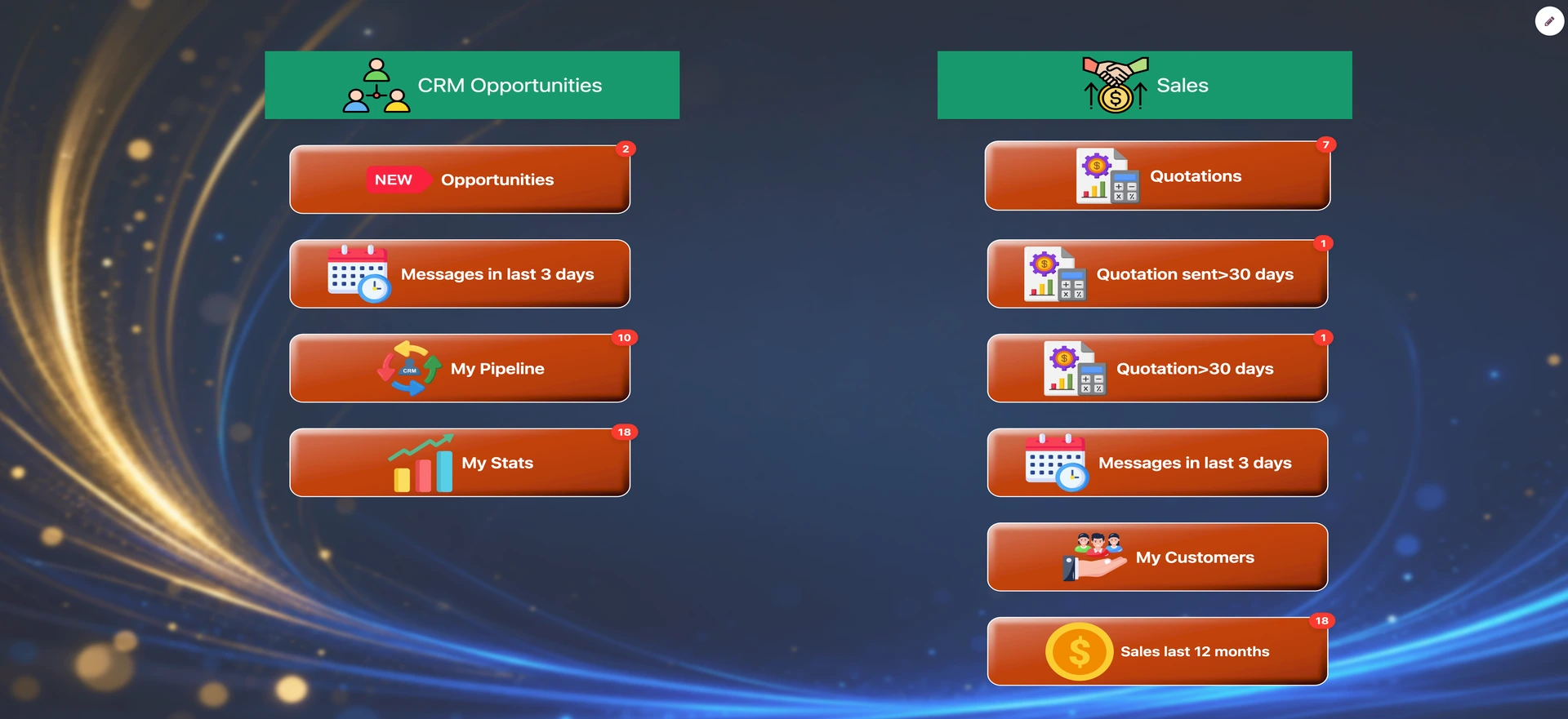
The Custom Desktop Launcher for Odoo provides a more focused way for users to enter and work within Odoo.
It does not replace Odoo’s underlying functionality. Instead, it allows businesses to create custom, role-based desktops that bring the right actions, views and information together in a clear visual workspace.
A focused starting point for every role
Different people use Odoo in different ways.
A warehouse employee may mainly need to:
- Receive incoming goods
- Process outgoing deliveries
- Check inventory
- Print stock documents
A salesperson may work primarily with:
- CRM opportunities
- Sales quotations
- Sales orders
- Customer information
- Sales reports and dashboards
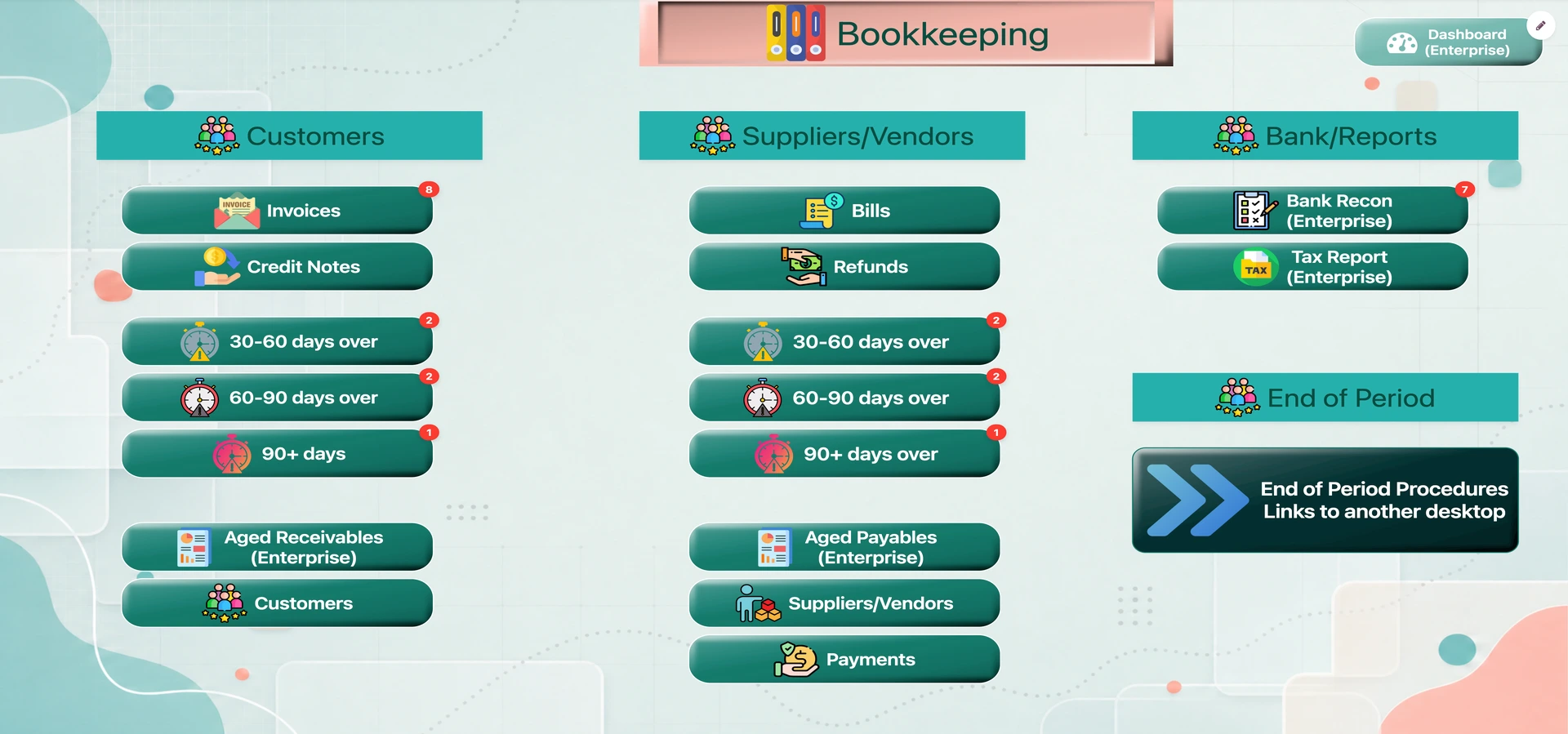
An accounts receivable or accounts payable team member may need quick access to:
- Customer invoices
- Vendor bills
- Bank reconciliation
- Payment-related activities
The Custom Desktop Launcher allows these activities to be brought together into a desktop designed around the user’s role.
Instead of starting with a broad collection of menus, users can start with a workspace that reflects the tasks they perform every day.
From menu navigation to visual workflows
Odoo’s standard menus provide access to a wide range of functionality. However, some business processes are easier to understand when they are represented visually.
With the Custom Desktop Launcher, desktops can be arranged as process flows rather than simply as collections of shortcuts.
For example, a warehouse desktop might guide a user through a sequence such as:
Receive goods → Check items → Put away stock → Validate the receipt
A sales desktop might present a process such as:
New opportunity → Prepare quotation → Confirm order → Review performance
The desktop can use different shapes, labels, colours and connectors to help distinguish actions, stages and decisions. This creates a visual representation of the work, while the underlying actions continue to open the relevant Odoo views and processes.
This can be particularly useful for:
- New employees learning a process
- Teams performing repetitive operational work
- Businesses that want a consistent workflow across locations
- Roles where users should focus on a defined set of tasks
The objective is not to hide Odoo’s capabilities permanently. It is to provide a clearer route through the capabilities that are relevant to the role.
Help users see what needs attention
A desktop can do more than provide links to Odoo screens.
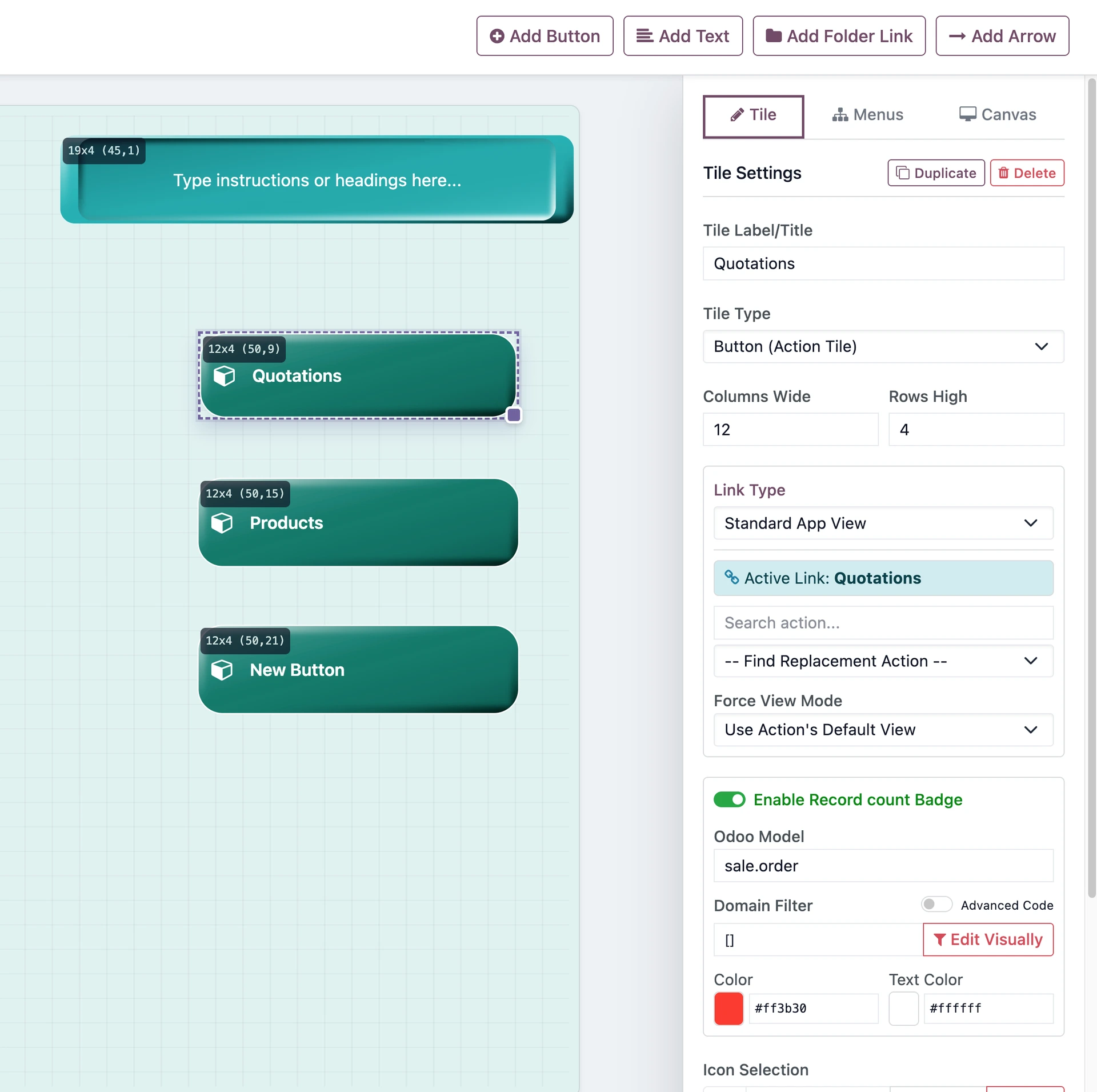
The Custom Desktop Launcher supports live badges that can display record counts based on Odoo domain queries. This allows a tile to show users when work requires attention.
Examples might include:
- Orders waiting to be processed
- Receipts awaiting validation
- Draft quotations
- Unpaid invoices
- Records assigned to the current user
- Activities due within a particular period
The counters can be configured using visual domain rules or advanced domain expressions. The launcher also supports useful dynamic values such as the logged-in user, today’s date, the current timestamp and date ranges.
Businesses can configure the refresh interval for these counters, or disable background polling when it is not required.
This gives users a more informative starting point. Rather than opening several applications to discover what work is waiting, they can see relevant workload information directly on their desktop.
Give users a workspace they can understand
The Custom Desktop Launcher includes a visual drag-and-drop editor for creating and modifying desktop layouts.
Users with the appropriate permissions can:
- Add tiles from Odoo’s menu structure
- Drag and resize items on a grid
- Arrange actions into groups
- Configure different link types
- Apply colours, borders and shapes
- Add labels and icons
- Use transparent or glass-style visual effects
- Create themes for consistent styling
- Edit multiple tiles at the same time
The Menus explorer provides a straightforward way to add standard Odoo pages. By selecting an item from the menu structure, the launcher can create a tile with the appropriate name, icon and action connection.
This avoids the need to guess which internal Odoo action corresponds to a particular menu entry.
For more advanced configurations, tiles can link to standard Odoo views, automated actions, dashboards, custom panels or external websites.
The result can be a desktop that is functional without looking overwhelming, and visually structured without losing access to Odoo’s underlying processes.
Create consistent desktops with themes
A desktop can be styled for a particular team, department or purpose.
Themes can define consistent visual properties such as:
- Colours
- Fonts
- Shapes
- Borders
- Alignment
- Shadow effects
- Background images
- Opacity and blur settings
Once a theme has been created, it can be reused across desktop layouts. This makes it easier to maintain a consistent appearance and update the overall style of a workspace without manually changing every tile.
The visual design is not only decorative. Clear grouping, consistent colours and appropriate shapes can help users recognise related activities and understand how a process is organised.
A more approachable visual environment can also make a complex business system feel easier to engage with.
Assign the right desktop to the right users
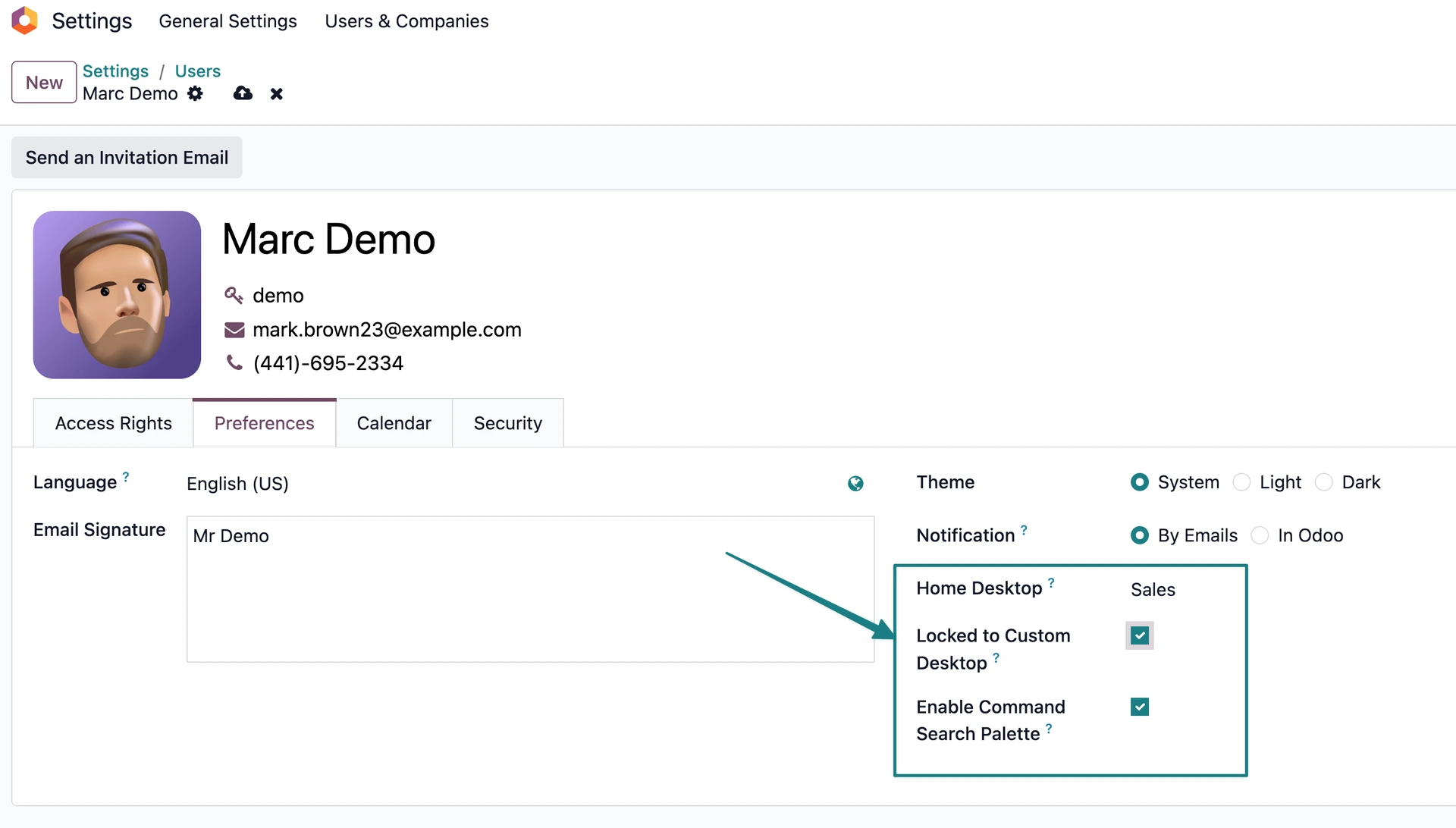
Desktops can be assigned to individual users or groups, allowing businesses to provide different workspaces for different roles.
For example, an organisation might create separate desktops for:
- Warehouse operations
- Sales
- Purchasing
- Customer service
- Accounts receivable
- Accounts payable
- Production
- Management
Users who are not locked to a particular desktop can switch between permitted workspaces using the desktop switcher.
For more tightly controlled roles, lock-in mode can be used to guide a user through a specific custom desktop. In this mode, the standard Odoo navigation elements can be hidden, allowing the user to work through the assigned dashboard buttons.
This can be useful where employees need a simple, structured route through a defined operational process.
The application also includes different permission levels for administrators, designers and ordinary users. This helps separate the people who configure desktops from the people who simply use them.
Odoo’s existing access rights still apply. If a user does not have permission to access an underlying Odoo action, the corresponding tile cannot be used to bypass those permissions.
Make everyday Odoo work more focused
The Custom Desktop Launcher is designed for businesses that want to make Odoo easier to navigate without reducing its capabilities.
It can help:
- Give new users a clearer introduction to Odoo
- Reduce repeated menu navigation for experienced users
- Present role-specific actions in one place
- Make process-based work easier to follow
- Highlight work requiring attention
- Provide managers with flexible desktop options
- Give teams more control over the way their workspaces are organised
The key idea is simple:
Odoo provides the power. A custom desktop provides a clearer way to use that power.
Every organisation has its own roles, processes and priorities. A sales team does not work in the same way as a warehouse team, and a finance user does not need the same starting point as a production operator.
A role-based desktop allows the Odoo experience to reflect those differences.
Conclusion
Odoo is broad because businesses need a system that can support many different kinds of work. But individual users usually need a more focused view of that system.
The Custom Desktop Launcher brings relevant Odoo actions, workflows and information together in a visual workspace designed around the user.
It provides a clearer starting point for new users, a more efficient launchpad for experienced users and a structured interface for process-driven teams.
Most importantly, it keeps the power of Odoo while making everyday work feel more direct, visual and approachable.
Custom Desktop Launcher for Odoo: focused workspaces for the way your team works.